Linux Home Networking
Michael Minn (see michaelminn.com for contact info)
2 January 2022
This page provides a brief introduction on how to network two Linux computers together so you can share files between machines.
While these techniques can be used to set up regular file sharing, a quick temporary network can be particularly useful when moving files from an old machine to a new machine when you wish to avoid the possible security threats of using intermediate cloud storage.
Connectivity
Your first step is getting some kind of network connectivity between two machines. You have numerous options with contemporary hardware.
Wireless Router
If you already are networked through a wireless router, you will simply need to run ifconfig on both machines to get the IP addresses they got from the router.
$ sudo ifconfig

eth0: flags=4163<UP,BROADCAST,RUNNING,MULTICAST>  mtu 1500
        inet 73.45.140.138  netmask 255.255.254.0  broadcast 255.255.255.255
        inet6 fe80::6a45:f1ff:fe6f:7b1a  prefixlen 64  scopeid 0x20
        ether 68:45:f1:6f:7b:1a  txqueuelen 1000  (Ethernet)
        RX packets 5242077  bytes 5089202364 (4.7 GiB)
        RX errors 0  dropped 0  overruns 0  frame 0
        TX packets 3554290  bytes 1467295701 (1.3 GiB)
        TX errors 0  dropped 0 overruns 0  carrier 0  collisions 0
        device interrupt 16  memory 0xb1100000-b1120000
Configuration of wireless interfaces via the comman line is described further below.
If you are setting up a file server that you will be using on a regular basis, you will want to find a way to set the file server machine to a manual, fixed IP address that does not rely on DHCP.
Ad-Hoc Wireless Network
If you don't have a wireless router, you can create an "Ad-Hoc" wireless network to interconnect the two machines.
You should first find the names of the interfaces on both machines. They are usually wlp1s0 or wlp2s0 on contemporary machines.
$ sudo iw dev

phy#0
        Interface wlp1s0
                ifindex 3
                wdev 0x1
                addr 3c:9c:0f:46:65:3b
                type managed
                txpower 0.00 dBm
The following instructions should be executed on both machines to set the card into ad-hoc mode, specify a frequency, set the network name and set a WEP encryption key.
Note that encryption keys specified as ASCII strings (s:) must be exactly 5 or 13 characters:
$ sudo iwconfig wlp1s0 mode Ad-Hoc
$ sudo iwconfig wlp1s0 channel 4
$ sudo iwconfig wlp1s0 essid omega
$ sudo iwconfig wlp1s0 key s:alpha
On the server machine, bring the interface up with the server address:
$ sudo ifconfig wlp1s0 192.168.1.1
On the client machine, bring the interface up with the client address and ping the server to verify connectivity
$ sudo ifconfig wlp1s0 192.168.1.2

$ ping 192.168.1.1

PING 192.168.1.1 (192.168.1.1) 56(84) bytes of data.
64 bytes from 192.168.1.1: icmp_seq=1 ttl=64 time=2.21 ms
64 bytes from 192.168.1.1: icmp_seq=2 ttl=64 time=0.445 ms
Crossover Cable
You can connect two machines directly together through their ethernet ports. However, you will will need to get a crossover cable, which appears identical to a regular Ethernet cable, the connectors are wired so the outputs of one machine go to the inputs of the other. A regular ethernet cable is inappropriate for this task.
Once connected, you should manually set the IP addresses on the two different machines and then ping the opposite machine to test the connection.
Server machine:
$ sudo ifconfig eth0 192.168.1.1
Client machine:
$ sudo ifconfig eth0 192.168.1.2

$ ping 192.168.1.1

PING 192.168.1.1 (127.0.0.1) 56(84) bytes of data.
64 bytes from 192.168.1.1: icmp_seq=1 ttl=64 time=0.053 ms
64 bytes from 192.168.1.1: icmp_seq=2 ttl=64 time=0.066 ms
64 bytes from 192.168.1.1: icmp_seq=3 ttl=64 time=0.071 ms
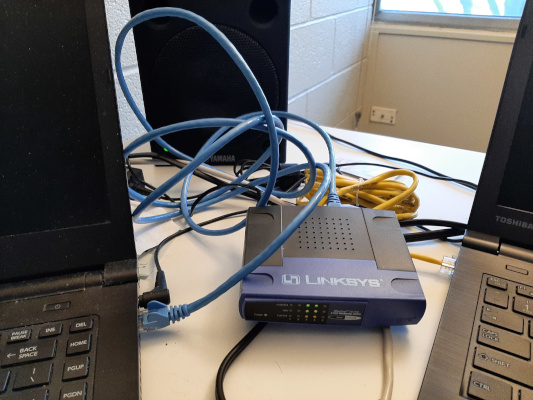
Physical Router
It is also possible to connect multiple machines together with a physical router, although such techniques have largely been supplanted by wireless.
The interface configuration would be the same as with a crossover cable configuration above.
NFS
The Network File System (NFS) is the standard Linux file server.
Files under Network File System (NFS) are served by a server and accessed by a client.
If you want to provide mutual access to files between two machines you will need to set both machines up as NFS servers and clients. If only one machine is being used for file storage, you only need NFS server on the source machine and the NFS client software on the other machine.
Packages
You will need two packages:
$ sudo apt-get install nfs-kernel-server rpcbind

$ sudo /etc/init.d/rpcbind start

$ sudo /etc/init.d/nfs-kernel-server start
NFS Exports
The /etc/exports file tells NFS which directories to make visible to network systems. To make the /home directory visible to all machines with the IP addresses given above, the /etc/exports file on both machines would have one line:
/home 192.168.1.0/255.255.255.0(rw)
Export these file systems after modifying /etc/exports. The file systems will subsequently be exported each time the server is reloaded.
$ sudo exportfs -a -v

$ sudo /etc/init.d/nfs-kernel-server reload
Mount
On all machines needing to mount the networked file system, create a mountpoint:
$ sudo mkdir /media/nfs
You can then mount the file system:
$ sudo mount -v 192.168.1.1:/home /media/nfs

$ ls /media/nfs

lost+found  user1   user2   user3
Regular Mounting
If you are going to be using the network on a regular basis, you should place an entry in the /etc/fstab file so users will be able to access the file system without having to manually mount.
192.168.1.1:/home /mnt/nfs nfs auto,user,exec,soft 0 0
NFS Debugging
NFS can be a MAJOR pain in the ass to get running, with cryptic error messages and strange freezes. The following are some errors I encountered and potential fixes. Some of these date from a previous experience with Fedora and they remain here for completeness. When all else fails, Google is your friend.
Test the Connection: If mounting of an NFS file system is freezing or failing, you should first verify that you have connectivity to the server using ping.
ping 192.168.1.1
Should give something like this:
	PING 192.168.1.1 (192.168.1.2) 56(84) bytes of data.
	64 bytes from 192.168.1.1: icmp_seq=0 ttl=64 time=0.895 ms
	64 bytes from 192.168.1.1: icmp_seq=1 ttl=64 time=0.435 ms
	64 bytes from 192.168.1.1: icmp_seq=2 ttl=64 time=0.430 ms
If you do not get ping messages, there's a problem with the basic connection between the machines. Verify that your cables are connected properly and firmly seated all the way into their sockets. If you are using a switch, make sure it is powered up and the indicator lights confirm connection. If you are using a crossover cable, make sure it is a crossover cable and not a regular Ethernet cable.
NFS Version
The Linux NFS client supposedly supports NFS protocol versions 2, 3, and 4 but the server doesn't seem quite so robust. nfsvers=2 is used above as the option on the mount command (or in /etc/fstab) to force use of NFS v2. If you fail to use explicit versioning, you may get a message like this:
	sudo mount -v 192.168.1.1:/home /mnt/network

	mount: no type was given - I'll assume nfs because of the colon
	mount.nfs: timeout set for Wed Dec 29 09:20:34 2010
	mount.nfs: text-based options: 'addr=192.168.1.1'
	mount.nfs: mount(2): Protocol not supported
	mount.nfs: trying 192.168.1.1 prog 100003 vers 3 prot UDP port 2049
	mount.nfs: mount to NFS server '192.168.1.1:/home' failed: RPC Error: Success
By contrast, when you use explicit versioning:
	mount -o nfsvers=2 192.168.1.1:/home /mnt/network

	mount: no type was given - I'll assume nfs because of the colon
	mount.nfs: timeout set for Wed Dec 29 09:20:53 2010
	mount.nfs: text-based options: 'nfsvers=2,addr=192.168.1.1'
	192.168.1.1:/home on /mnt/network type nfs (rw,nfsvers=2)
Access denied: This is likely caused because the directory you are trying to mount is not specified in /etc/exports on the NFS server. You should verify that file contains the correct info as described above.
mount.nfs: access denied by server while mounting 192.168.1.1:/home
RPC Error: Program not registered: This is likely caused because NFS or rpcbind is not running on the server. Execute "/etc/init.d/unfs3 start" on the server as described above.
	mount.nfs: mount to NFS server '192.168.1.1:/home' failed:
	RPC Error: Program not registered
Server Is Down
mount to NFS server 'x.x.x.x' failed: server is down
This may, in fact, mean that the server is not running or that you do not have connectivity to the server (see above for ping). It can also be caused if the server does not have an entry in /etc/exports giving you permission to mount the requested resource (see above).
However, this message may also be caused by a NFS protocol version mismatch. You should use NFS version 2 as described above.
Permission denied on mount
	statd: Could not chdir: Permission denied
	mount.nfs: rpc.statd is not running but is required for remote locking.
	mount.nfs: Either use '-o nolock' to keep locks local, or start statd.
This is a strange one. The easiest solution was to just mount as superuser:
sudo mount /mnt/network
However, subsequent mounts as non-superuser worked fine, so go figure.
Starting NFS quotas: Cannot register service
	Starting NFS quotas: Cannot register service: RPC:
	Unable to receive; errno = Connection refused
	rpc.rquotad: unable to register (RQUOTAPROG, RQUOTAVERS, udp).
This is a mysterious one. Seems to magically go away if you just restart NFS.
/etc/init.d/unfs3 restart
Firewall - iptables: If you are running a non-Ubuntu configuration or you have iptables running as a firewall, it needs to be configured to allow the client machine(s) to access NFS. On both machines, add a new iptables rule that accepts all input on the eth0 interface from the local network (both 192.168.1.1 and 192.168.1.2). List the new table and if everything looks good, save it to the /etc/sysconfig/iptables file.
	sudo iptables -I INPUT -p ALL -i eth0 -s 192.168.1.0/255.255.255.0 -j ACCEPT
	sudo iptables -L
	sudo iptables-save > /etc/sysconfig/iptables
RPC: Port mapper failure - RPC: Unable to receive: NFS uses TCP/IP port 2049. The default firewalls on many distributions may cause mounting a drive on a remote machine to fail with the message:
RPC: Port mapper failure - RPC: Unable to receive
Solution is changing the iptable settings as described above.
RPC: Timed out
The firewall settings on the server or client may cause the mount to hang and eventually issue the message:
RPC: Timed out
Solution is changing the iptable settings as described above.
Debugging - Ports: NFS uses TCP port 2049. rpcinfo can be used to list available ports. Problems with rpcinfo indicates a machine is not accepting NFS requests.
rpcinfo
You can also verify open ports with netstat. nfs should be listed for both tcp and udp, although only the tcp port will be in LISTEN state
	# netstat -tul

	Active Internet connections (only servers)
	Proto Recv-Q Send-Q Local Address           Foreign Address         State
	tcp        0      0 *:nfs                   *:*                     LISTEN
	tcp        0      0 *:printer               *:*                     LISTEN
	tcp        0      0 *:676                   *:*                     LISTEN
	tcp        0      0 *:sunrpc                *:*                     LISTEN
	tcp        0      0 *:x11                   *:*                     LISTEN
	tcp        0      0 *:ha-cluster            *:*                     LISTEN
	tcp        0      0 *:32893                 *:*                     LISTEN
	tcp        0      0 *:32894                 *:*                     LISTEN
	udp        0      0 *:nfs                   *:*
	udp        0      0 *:32782                 *:*
	udp        0      0 *:32783                 *:*
	udp        0      0 *:673                   *:*
	udp        0      0 *:691                   *:*
	udp        0      0 *:bootpc                *:*
	udp        0      0 *:727                   *:*
	udp        0      0 *:sunrpc                *:*
iptables restart: If all else fails, you can simply stop the firewall.
sudo service iptables stop
If this solves the problem, you should look further into correcting your firewall configuration. Running without a firewall, especially with a connection to the internet exposes your machine to hacking and not recommended.
FYI, an important line in /etc/sysconfig/iptables on some Red Hat configurations may be rejection of port 2049, used by NFS:
-A RH-Lokkit-0-50-INPUT -p udp -m udp --dport 2049 -j REJECT
Command Line Wireless Configuration
I prefer to start and stop my networks manually, and removed the network-manager to avoid conflicts and problems encountered on other machines:
$ sudo apt-get remove network-manager
Wireless interfaces can be started with the ifup command:
$ sudo ifup wlp1s0
The interface can be stopped with the ifdown command:
$ sudo ifdown wlp1s0
Access points can be displayed with the iwlist command:
$ sudo iwlist wlp2s0 scan
Access points can be configured with the iwconfig command:
$ sudo iwconfig wlp2s0 essid <SSID>
If you have an access point that you regulaly connect to, you can configure the SSID and password in the /etc/network/interfaces file:
iface wlp2s0 inet dhcp
wpa-ssid "<SSID>"
wpa-psk "<PASSWORD>"
To have the interface start automatically on boot:
auto wlp2s0
iface wlp2s0 inet dhcp
wpa-ssid "<SSID>"
wpa-psk "<PASSWORD>"
Diagnostic Utilities
Networks always have problems and diagnosis of those problems is the primary activity of network administrators. Diagnosing and solving network problems is a black art that can only be covered superficially here, but the following are some basic utilities for diagnosing problems. Many of these programs are mentioned in more detail above and you can get further information on the command line with the "man <command>" command.
ifconfig: The first step is to verify that the interface you are trying to connect to the network with is up and has a valid IP address. ifconfig with no arguments lists all the network interfaces on a system and allows configuration. If the interface is not displayed or does not have an IP address, your system cannot connect to the network through that interface. The example output given below shows the interface IP address as 192.168.1.47 and, with the given mask, the default gateway is 192.168.1.1. The "RX bytes" and "TX bytes" can be used to determine if there has been any traffic on an interface, implying that it is or was working at some point. lo is the loopback interface on every system that is, in essence, only connected to itself.
	eth0      Link encap:Ethernet  HWaddr 00:0F:B0:66:40:C2
	          inet addr:192.168.1.47  Bcast:255.255.255.255  Mask:255.255.255.0
	          inet6 addr: fe80::20f:b0ff:fe66:40c2/64 Scope:Link
	          UP BROADCAST RUNNING MULTICAST  MTU:1500  Metric:1
	          RX packets:29369 errors:0 dropped:0 overruns:0 frame:0
	          TX packets:32776 errors:0 dropped:0 overruns:0 carrier:0
	          collisions:0 txqueuelen:1000
	          RX bytes:20428276 (19.4 Mb)  TX bytes:21405541 (20.4 Mb)
	          Interrupt:11 Base address:0x3000

	lo        Link encap:Local Loopback
	          inet addr:127.0.0.1  Mask:255.0.0.0
	          inet6 addr: ::1/128 Scope:Host
	          UP LOOPBACK RUNNING  MTU:16436  Metric:1
	          RX packets:8 errors:0 dropped:0 overruns:0 frame:0
	          TX packets:8 errors:0 dropped:0 overruns:0 carrier:0
	          collisions:0 txqueuelen:0
         	  RX bytes:592 (592.0 b)  TX bytes:592 (592.0 b)
ping is the second most useful network diagnostic utility. ping allows you to send echo request messages to specific IP addresses and verify that they are up. Generally, in diagnosing a connectivity problem you will first try to ping the interface, then ping the gateway (which can be inferred from the output of ifconfig), and, finally, ping the destination you are trying to reach.
traceroute lists all the routers between you and a destination. This permits detection of the point in a route where there is a problem.
arp allows display and modification of the ARP caches on interfaces. If you need to determine if you have the lowest level connectivity to the network, in this case through interface eth0:
/sbin/arp -a -i eth0
iwconfig is a utility for displaying and configuring wireless-specific information that is not part of ifconfig. Looking for the connected access point ESSID (or lack thereof) is a common reason to use iwconfig.
iwlist: When connecting to an unfamiliar network, you may want to use the iwlist command to see what access points are available. If no access point ESSID is specified, bringing a wireless interface up will connect to the most powerful AP it sees, which may not be the one you want.
/sbin/iwlist wlan0 scan
tcpdump is a program for listing network packets. The output can be rather obtuse to the uninitiated. Useful for diagnosing problems with NFS or authentication issues. For example, to display packets in ASCII that are passing through interface eth0:
tcpdump -s 1024 -A -i eth0
In some configurations the filtering used by tcpdump may be so aggressive that it yields no significant output other than ARP requests. In those cases you may need to specify the specific IP network address of the interface you're trying to list traffic from:
tcpdump -A -s 1024 net 192.168.1.1
netstat lists active network connections, routing tables, interface statistics, masquerade connections, and multicast membership
- netstat -r: show routing table
- netstat -a: list connections
- netstat -s: list statistics by protocol
- netstat -n: list port numbers
host, dig and nslookup are DNS lookup utilities, with dig giving the more detailed output of the bunch. If you are having trouble connecting to a named website, you can use these utilities to try to figure out if the name is getting resolved to an IP address. You can also use these utilities to lookup addresses on specific nameservers if your currently configured nameserver is having problems.
route is a utility to list and/or manipulate the IP routing table. If you're having problems with a browser not being able to see a network, this will show if there is a problem in your routing table.
Example route output with a DSL modem
Destination     Gateway         Genmask         Flags Metric Ref    Use Iface
192.168.1.0     *               255.255.255.0   U     0      0        0 eth0
169.254.0.0     *               255.255.0.0     U     0      0        0 eth0
default         dslrouter       0.0.0.0         UG    0      0        0 eth0
Example route output with a dialup modem Destination Gateway Genmask Flags Metric Ref Use Iface nas31.newyork1. * 255.255.255.255 UH 0 0 0 ppp0 default nas31.newyork1. 0.0.0.0 UG 0 0 0 ppp0
whois queries the Internet WhoIs database to find out who a domain name is registered to. Anonymous or third-world registrations often indicate entities that you should have no dealings with. whois can also be used to list to what organization an IP address has been assigned to, although this information will often only lead you to an ISP that controls a block of IP addresses and not to the company or individual who is actually using that IP address.
airsnort: When you need to connect to an encrypted network but do not have the encryption key, AirSnort can listen to traffic for a period of time and determine the key.
nmap is a network exporation tool and security scanner. Lots of options. The -sT option is especially useful for detecting "open ports" that represent potential entry paths for invaders and the results of this scan may indicate unnecessary services you want to shut down or unnecessary permissions in your firewall.
	Example: scan a local address for open ports
		nmap -sT 192.168.1.1

	Example: looks for hosts on a network
		nmap -sP 172.16.1.1-127
Netdisco is an open source web-based network management tool. It's quite complex and I mention it here only as a suggestion if you're looking for network discovery software.
nmblookup, smbstatus and findsmb are utilities for diagnosing and establishing Samba connections to Windoze systems. They are described earlier in this document.
The glory of the disposition that stops to consider stimuli rather than rushing to engage with them is its long association with intellectual and artistic achievement. Neither E=MC^2 nor Paradise Lost was dashed off by a party animal. (Winifred Gallagher)